> ## Documentation Index
> Fetch the complete documentation index at: https://restaurants.poly.ai/llms.txt
> Use this file to discover all available pages before exploring further.
# Tripleseat integration
> This article covers how to connect Tripleseat to your PolyAI agent to handle large party bookings.
[Tripleseat](https://tripleseat.com) is a catering and event management platform for restaurants, hotels, and venues. Connecting Tripleseat to PolyAI lets your agent send caller details to Tripleseat when a guest requests a large party booking, instead of transferring or turning the request away.
**When does the agent use Tripleseat?**
When a guest requests a booking for a party size **larger** than the [Max party number](/configure/reservation-flows) configured for the site, the agent triggers the site's large party handling action. If that action is set to **Send details to Tripleseat**, the agent collects the event details and sends them to the mapped Tripleseat location.
## What the agent collects
During a large party booking, the agent collects the following details to send to Tripleseat:
* **Activity type** (for example, *Birthday*)
* **Name**
* **Number of people**
* **Date and time**
* **Contact** (email and phone)
In v1, the email is collected over the call. SMS-based email collection is not yet supported.
## Configure Tripleseat from a site
Tripleseat is configured per site, from the **Sites** page in the PolyAI platform.
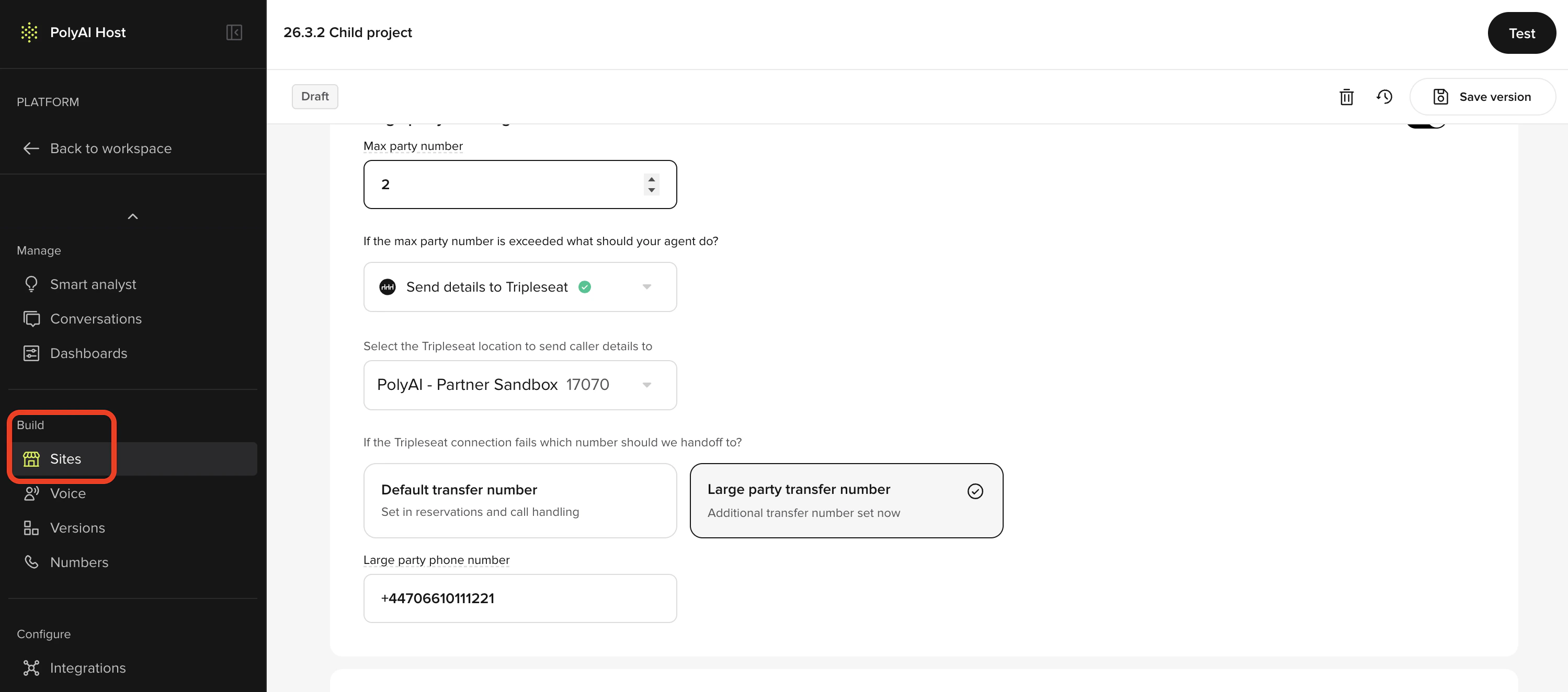 1. In the PolyAI platform, click **Sites** on the left panel
2. Click the site you want to configure
Scroll to the **Large party handling** card and set:
* **Max party number** — the party size that triggers large party handling
* **If the max party number is exceeded what should your agent do?** — select **Send details to Tripleseat**
If your account isn't connected yet, click **Connect Tripleseat** and enter your Tripleseat credentials in the pop-up window.
Under **Select the Tripleseat location to send caller details to**, choose the Tripleseat location that matches this site.
Tripleseat usually only runs at a subset of your sites. Only enable **Send details to Tripleseat** for the sites that use it.
Under **If the Tripleseat connection fails which number should we handoff to?**, choose:
* **Default transfer number** — uses the [transfer number](/configure/reservation-flows) set in reservations and call handling
* **Large party transfer number** — enter a dedicated number under **Large party phone number** (international format, for example `+44773223445`)
Click **Save version** in the top-right, add a note about your change, then go to **Versions** and click **Go Live** when you're ready to publish.
## Alternative large party action
Instead of Tripleseat, you can transfer large party callers to a phone number:
The agent collects the event details and sends them to the Tripleseat location mapped to the site.
The agent transfers the guest to the **Default transfer number** or a **Large party transfer number** that you set on the site.
These options are mutually exclusive — you can pick one large party action per site.
The guest can still ask to be handed off to a real agent at any point during the conversation.
## Manage the Tripleseat connection
The Tripleseat account-level connection is managed on the **Integrations** page (under **Configure** in the left panel). From there, you can view connection status or disconnect the account.
Before disconnecting Tripleseat, update any sites that use **Send details to Tripleseat** to use a different large party action. If you disconnect without updating, the agent falls back to the configured transfer number for large party bookings.
1. In the PolyAI platform, click **Sites** on the left panel
2. Click the site you want to configure
Scroll to the **Large party handling** card and set:
* **Max party number** — the party size that triggers large party handling
* **If the max party number is exceeded what should your agent do?** — select **Send details to Tripleseat**
If your account isn't connected yet, click **Connect Tripleseat** and enter your Tripleseat credentials in the pop-up window.
Under **Select the Tripleseat location to send caller details to**, choose the Tripleseat location that matches this site.
Tripleseat usually only runs at a subset of your sites. Only enable **Send details to Tripleseat** for the sites that use it.
Under **If the Tripleseat connection fails which number should we handoff to?**, choose:
* **Default transfer number** — uses the [transfer number](/configure/reservation-flows) set in reservations and call handling
* **Large party transfer number** — enter a dedicated number under **Large party phone number** (international format, for example `+44773223445`)
Click **Save version** in the top-right, add a note about your change, then go to **Versions** and click **Go Live** when you're ready to publish.
## Alternative large party action
Instead of Tripleseat, you can transfer large party callers to a phone number:
The agent collects the event details and sends them to the Tripleseat location mapped to the site.
The agent transfers the guest to the **Default transfer number** or a **Large party transfer number** that you set on the site.
These options are mutually exclusive — you can pick one large party action per site.
The guest can still ask to be handed off to a real agent at any point during the conversation.
## Manage the Tripleseat connection
The Tripleseat account-level connection is managed on the **Integrations** page (under **Configure** in the left panel). From there, you can view connection status or disconnect the account.
Before disconnecting Tripleseat, update any sites that use **Send details to Tripleseat** to use a different large party action. If you disconnect without updating, the agent falls back to the configured transfer number for large party bookings.