> ## Documentation Index
> Fetch the complete documentation index at: https://restaurants.poly.ai/llms.txt
> Use this file to discover all available pages before exploring further.
# Operating hours
> This article covers how to edit your restaurant’s standard and special operating hours within your PolyAI agent. This gives the agent the information it needs to check availability and answer guests asking about these hours.
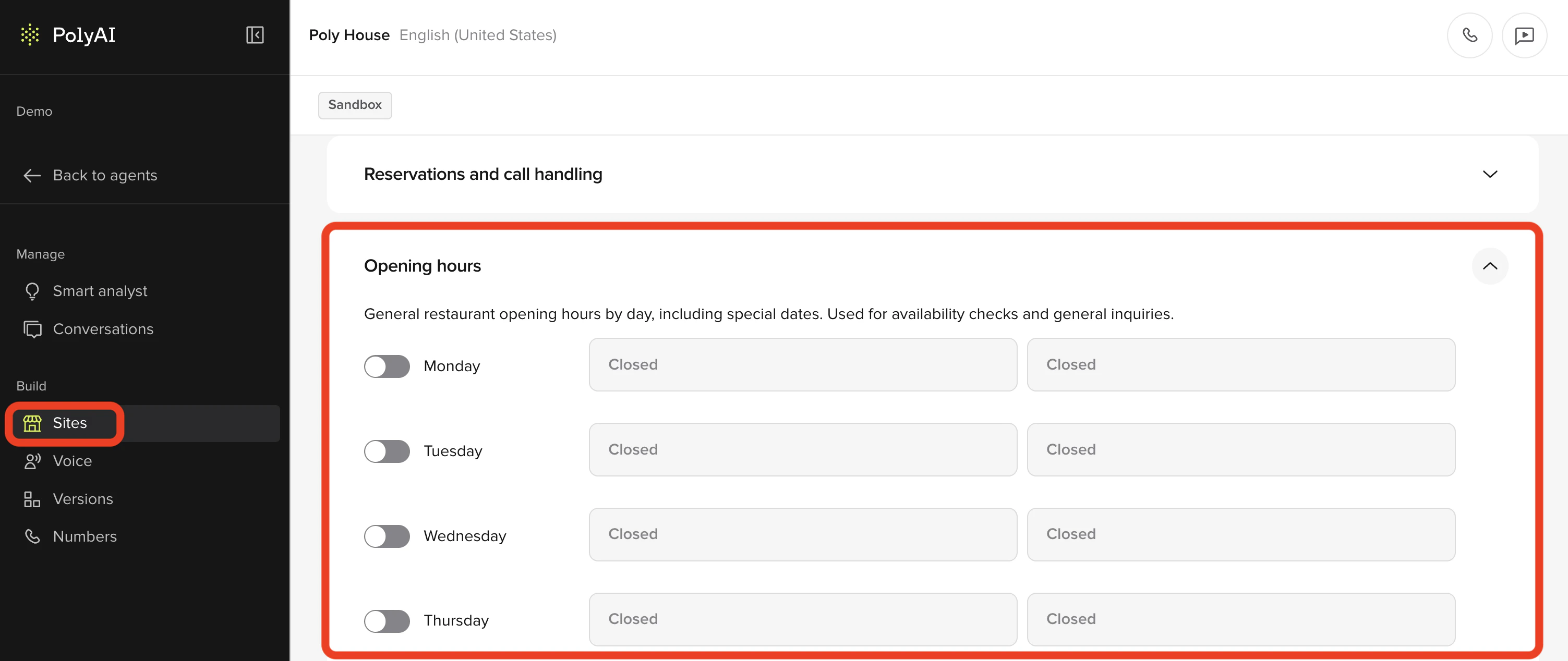 1. In the PolyAI platform, click **Sites** on the left panel
2. Click the site you want to make edits to
3. Scroll down to the hours you want to make edits to:
* Opening hours (**mandatory**): General restaurant opening hours by day.
* Kitchen hours (optional): Kitchen service hours by day. If provided, customers asking about kitchen hours will hear these times.
* Bar hours (optional): Bar service hours by day. If provided, customers asking about bar hours will hear these times.
* Phone staff hours (optional): Hours when staff are available to handle transferred calls. Used to determine if call transfers are allowed during out-of-hours periods. If provided, transfers will be allowed during these hours even if outside opening hours (e.g., for prep time, cleanup, or special events). If empty, opening hours will be used for transfer availability checks.
4. Toggle **on** the days when you are operating and use the dropdown menus to select the hours
5. Click **Save to version** in the top-right
6. Add a note about what you changed
7. Then click **Save to version** again
8. Click the **call agent** button in the top-right
9. Select the site and click **start test call**
10. Ask the agent about the hours that you edited (for example, "what are your opening hours for Monday?"
11. If you are satisfied with how the agent responds, click **Versions** on the left panel
12. Click **Go live** to the right of the change you made
A \*\*special date \*\*is a date when the restaurant's opening hours are different from the typical opening hours for that day of the week.
1. In the PolyAI platform, click **Sites** on the left panel
2. Click the site you want to make edits to
3. Scroll down to the hours you want to make edits to (opening hours, kitchen hours, bar hours, or staff hours)
4. Click **+ special date**
5. Select the date (and check off **override occurs each year** if this is an annual special date)
6. Use the dropdown menus to enter the operating hours OR click the three-dot icon to the far-right and set it as a "closed" date
7. Click **Save to version** in the top-right
8. Add a note about what you changed
9. Then click **Save to version** again
10. Click the **call agent** button in the top-right
11. Select the site and click **start test call**
12. Ask the agent about the hours that you edited (for example, "what time are you open on Christmas Day?"
13. If you are satisfied with how the agent responds, click **Versions** on the left panel
14. Click **Go live** to the right of the change you made.
1. In the PolyAI platform, click **Sites** on the left panel
2. Click the site you want to make edits to
3. Scroll down to the hours you want to make edits to:
* Opening hours (**mandatory**): General restaurant opening hours by day.
* Kitchen hours (optional): Kitchen service hours by day. If provided, customers asking about kitchen hours will hear these times.
* Bar hours (optional): Bar service hours by day. If provided, customers asking about bar hours will hear these times.
* Phone staff hours (optional): Hours when staff are available to handle transferred calls. Used to determine if call transfers are allowed during out-of-hours periods. If provided, transfers will be allowed during these hours even if outside opening hours (e.g., for prep time, cleanup, or special events). If empty, opening hours will be used for transfer availability checks.
4. Toggle **on** the days when you are operating and use the dropdown menus to select the hours
5. Click **Save to version** in the top-right
6. Add a note about what you changed
7. Then click **Save to version** again
8. Click the **call agent** button in the top-right
9. Select the site and click **start test call**
10. Ask the agent about the hours that you edited (for example, "what are your opening hours for Monday?"
11. If you are satisfied with how the agent responds, click **Versions** on the left panel
12. Click **Go live** to the right of the change you made
A \*\*special date \*\*is a date when the restaurant's opening hours are different from the typical opening hours for that day of the week.
1. In the PolyAI platform, click **Sites** on the left panel
2. Click the site you want to make edits to
3. Scroll down to the hours you want to make edits to (opening hours, kitchen hours, bar hours, or staff hours)
4. Click **+ special date**
5. Select the date (and check off **override occurs each year** if this is an annual special date)
6. Use the dropdown menus to enter the operating hours OR click the three-dot icon to the far-right and set it as a "closed" date
7. Click **Save to version** in the top-right
8. Add a note about what you changed
9. Then click **Save to version** again
10. Click the **call agent** button in the top-right
11. Select the site and click **start test call**
12. Ask the agent about the hours that you edited (for example, "what time are you open on Christmas Day?"
13. If you are satisfied with how the agent responds, click **Versions** on the left panel
14. Click **Go live** to the right of the change you made.