> ## Documentation Index
> Fetch the complete documentation index at: https://restaurants.poly.ai/llms.txt
> Use this file to discover all available pages before exploring further.
# Choosing agent voice
> This article covers how to update your PolyAI agent’s voices.
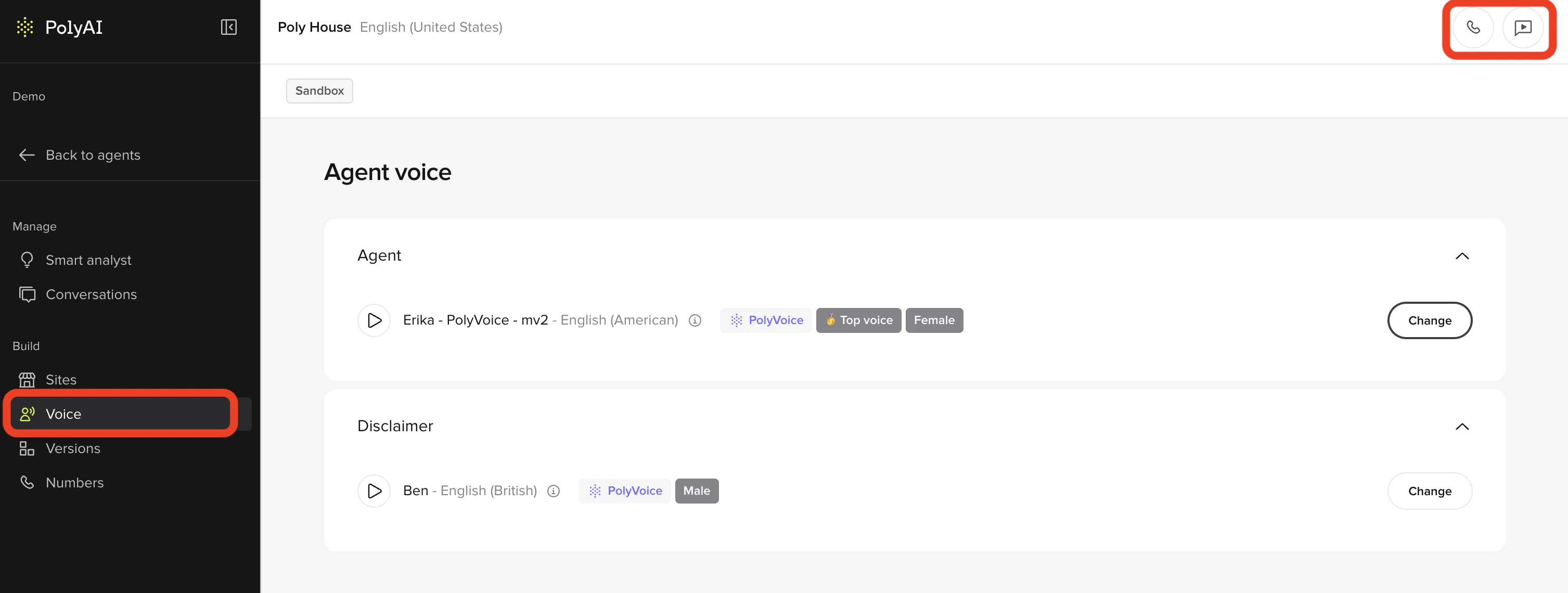
Your PolyAI agent has two **voices**. One is for the disclaimer, which intentionally sounds robotic. The other is your agent’s main voice, which is human-sounding and speaks from the greeting onwards.
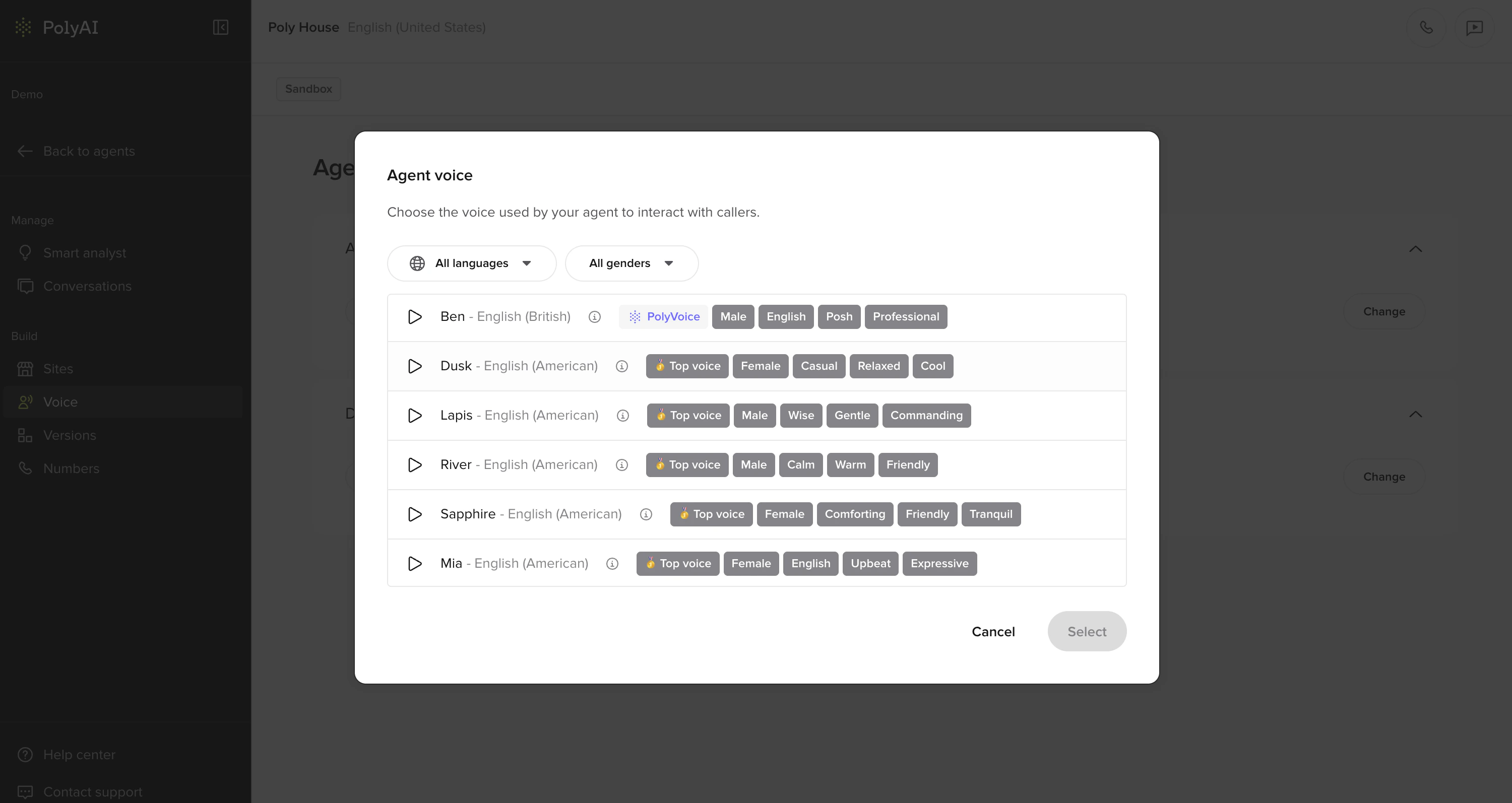
 The Voice Library includes a collection of high-quality voices across multiple providers. You can preview each voice, and filter by language or gender to find the best fit for your brand.
**To update your PolyAI agent’s voices:**
1. In the PolyAI platform, click **Voice** on the left panel
2. Click **change** next to either your main agent’s voice
3. (Optional) Apply the **languages** and/or **gender** filters to narrow down the selection
4. Click the play button next to a voice to hear what it sounds like
5. Click the voice you want to choose and click **select** in the bottom-right
6. Once you have made your update, click **Save to version** in the top-right
7. Add a note about what you changed
8. Then click **Save to version** again
9. Click the **Call Agent** button in the top-right
10. Select the site and click **Start Test Call** to hear your new voice(s)
11. If you are satisfied with how the agent sounds, click **Versions** on the left panel
12. Click **Go Live** to the right of the change you made
The Voice Library includes a collection of high-quality voices across multiple providers. You can preview each voice, and filter by language or gender to find the best fit for your brand.
**To update your PolyAI agent’s voices:**
1. In the PolyAI platform, click **Voice** on the left panel
2. Click **change** next to either your main agent’s voice
3. (Optional) Apply the **languages** and/or **gender** filters to narrow down the selection
4. Click the play button next to a voice to hear what it sounds like
5. Click the voice you want to choose and click **select** in the bottom-right
6. Once you have made your update, click **Save to version** in the top-right
7. Add a note about what you changed
8. Then click **Save to version** again
9. Click the **Call Agent** button in the top-right
10. Select the site and click **Start Test Call** to hear your new voice(s)
11. If you are satisfied with how the agent sounds, click **Versions** on the left panel
12. Click **Go Live** to the right of the change you made