

ASR biasing for flows
ASR biasing for flows
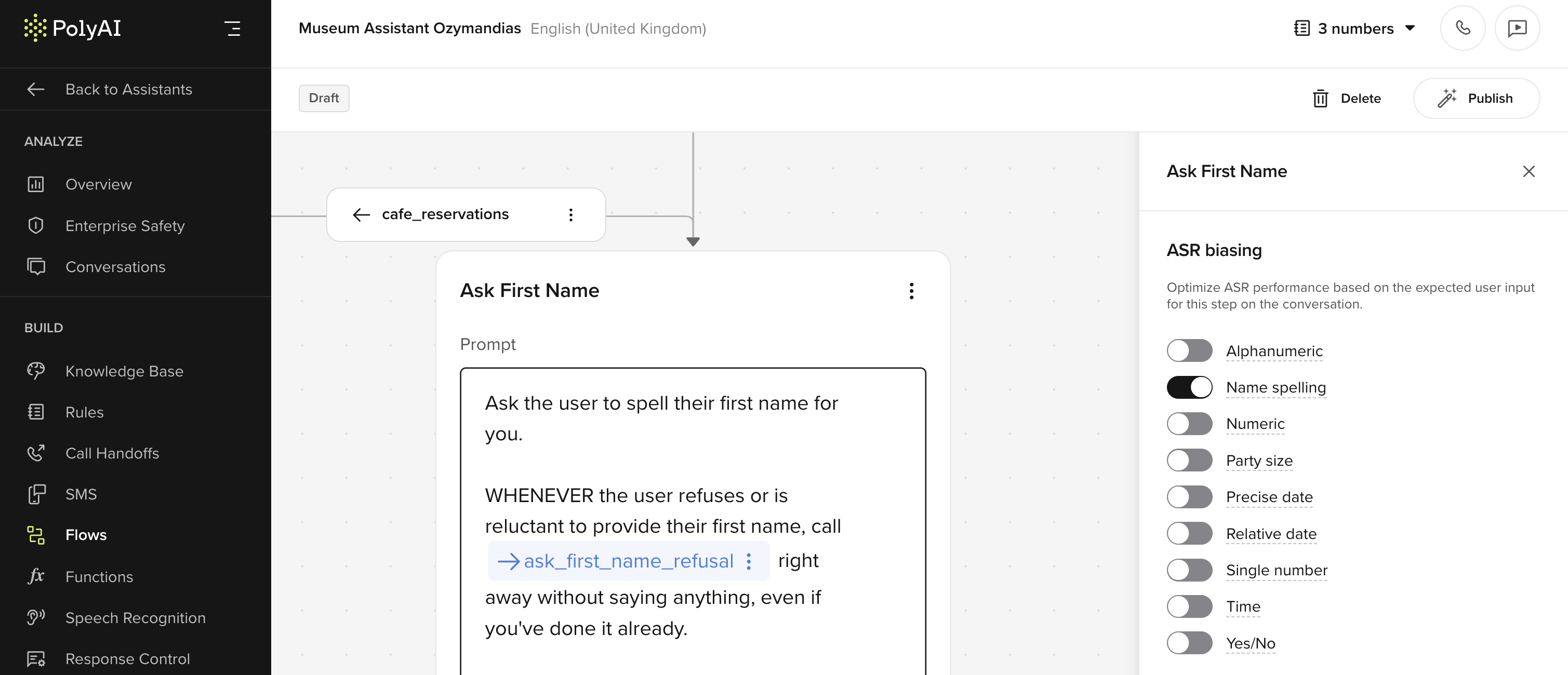
- Bias for input types including alphanumeric, numeric, precise date, string number, yes/no, name spelling, party size, relative date, and time.
- Optimal biasing effectiveness is achieved by selecting the minimal necessary inputs.
- Improved ASR performance: Targeted biasing enhances recognition accuracy for specific input types.
- Higher recognition rate: Custom biasing ensures critical inputs are accurately captured.
- Open the “Flows” section under the Build tab.
- Configure biasing for input types at designated Flow steps.
UK and EU regions
UK and EU regions
The studio now operates in UK and EU regions as well as the default US.Key updates:
- EUW-1 and UK-1 production environments.
- New regional domain addresses:
- Authentication formats for regional production environments remain the same.
View versions
View versions
Manage and review historical, draft, sandbox, pre-release, and live versions of your agent for seamless change management.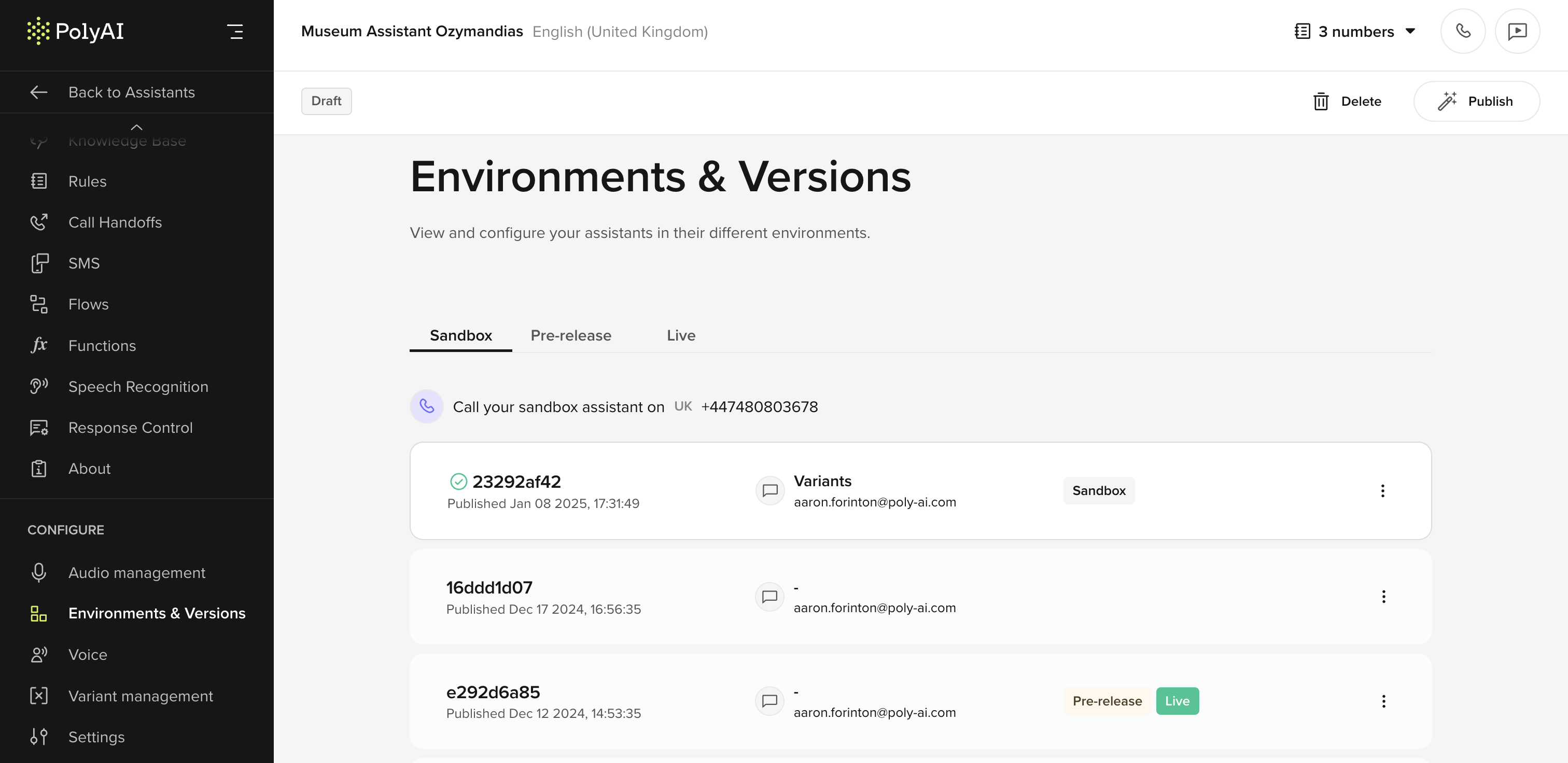
- View and manage all agent versions.
- Access historical versions for a comprehensive overview.
- Development and Deployment: Efficiently manage changes to align with business objectives.
- Ongoing Maintenance: Implement updates without impacting user experience.
Disclaimers
Disclaimers
Set a distinct greeting message and dial tone before the agent interaction begins.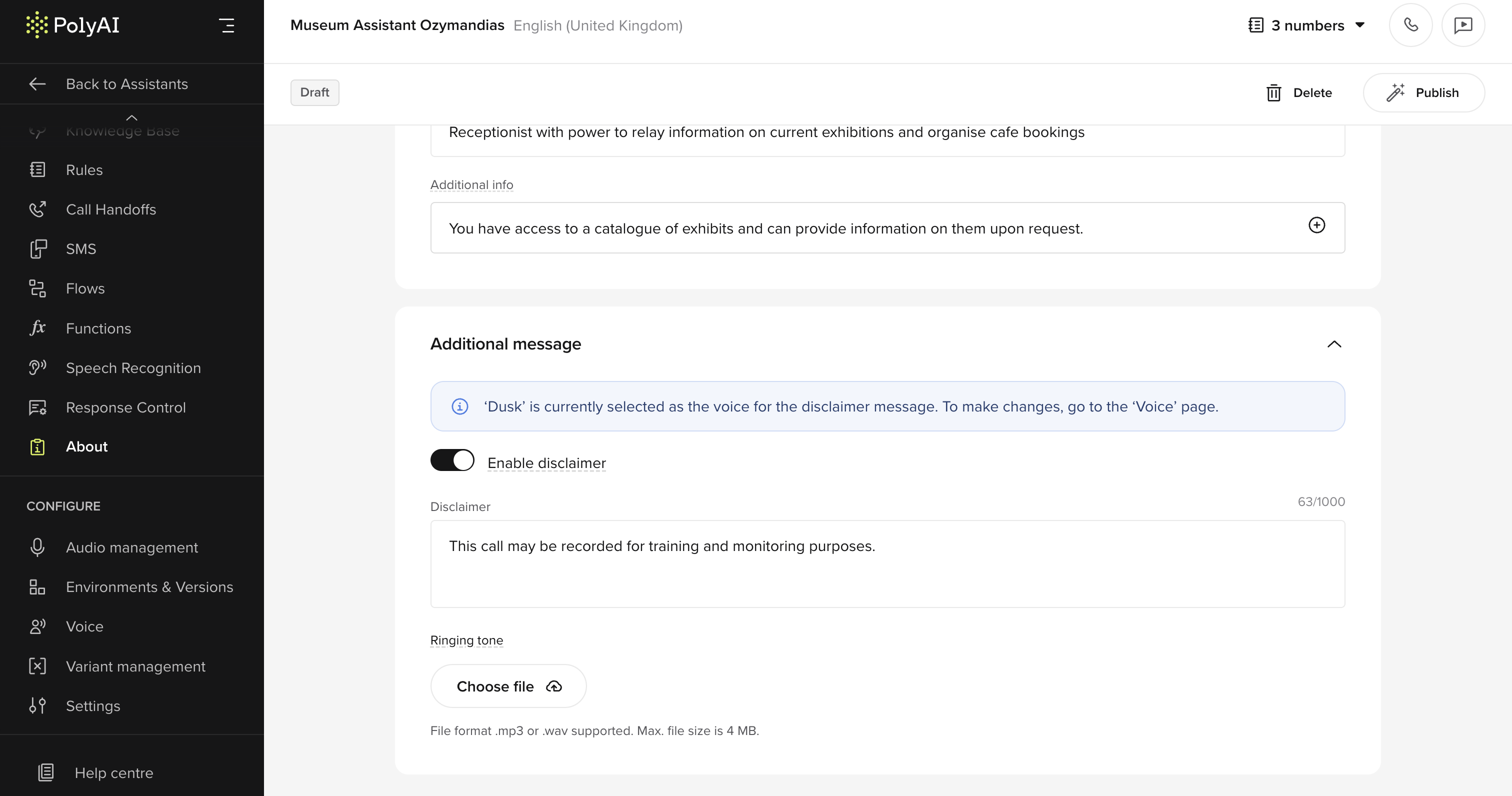
- Customize greeting messages with a separate voice.
- Upload custom dial tones for tailored interactions.
- Go to the “About” section.
- Enable the disclaimer message and configure the greeting and tone settings.
Content safety filters
Content safety filters
Gain full control over Safety Filters directly in the studio UI. Builders can fine-tune severity settings or disable specific filters to better align with project requirements.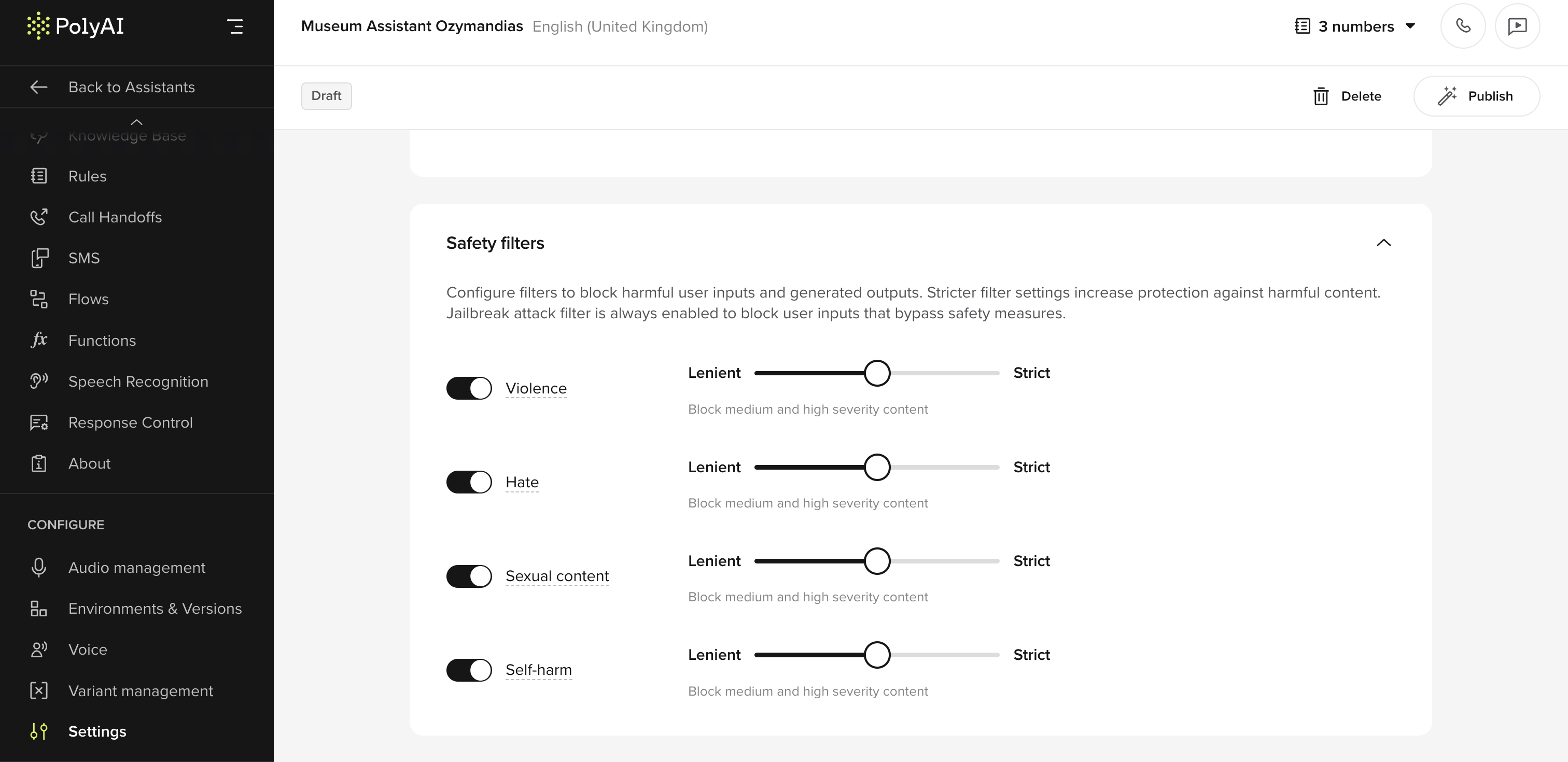
- Adjust filter severity to match client risk tolerance.
- Disable specific filters when necessary.
- In the “Settings” section, modify filter thresholds using the slider or disable filters as needed.