

When does the agent use Tripleseat?When a guest requests a booking for a party size larger than the Max party number configured for the site, the agent triggers the site’s large party handling action. If that action is set to Send details to Tripleseat, the agent collects the event details and sends them to the mapped Tripleseat location.
What the agent collects
During a large party booking, the agent collects the following details to send to Tripleseat:- Activity type (for example, Birthday)
- Name
- Number of people
- Date and time
- Contact (email and phone)
In v1, the email is collected over the call. SMS-based email collection is not yet supported.
Configure Tripleseat from a site
Tripleseat is configured per site, from the Sites page in the PolyAI platform.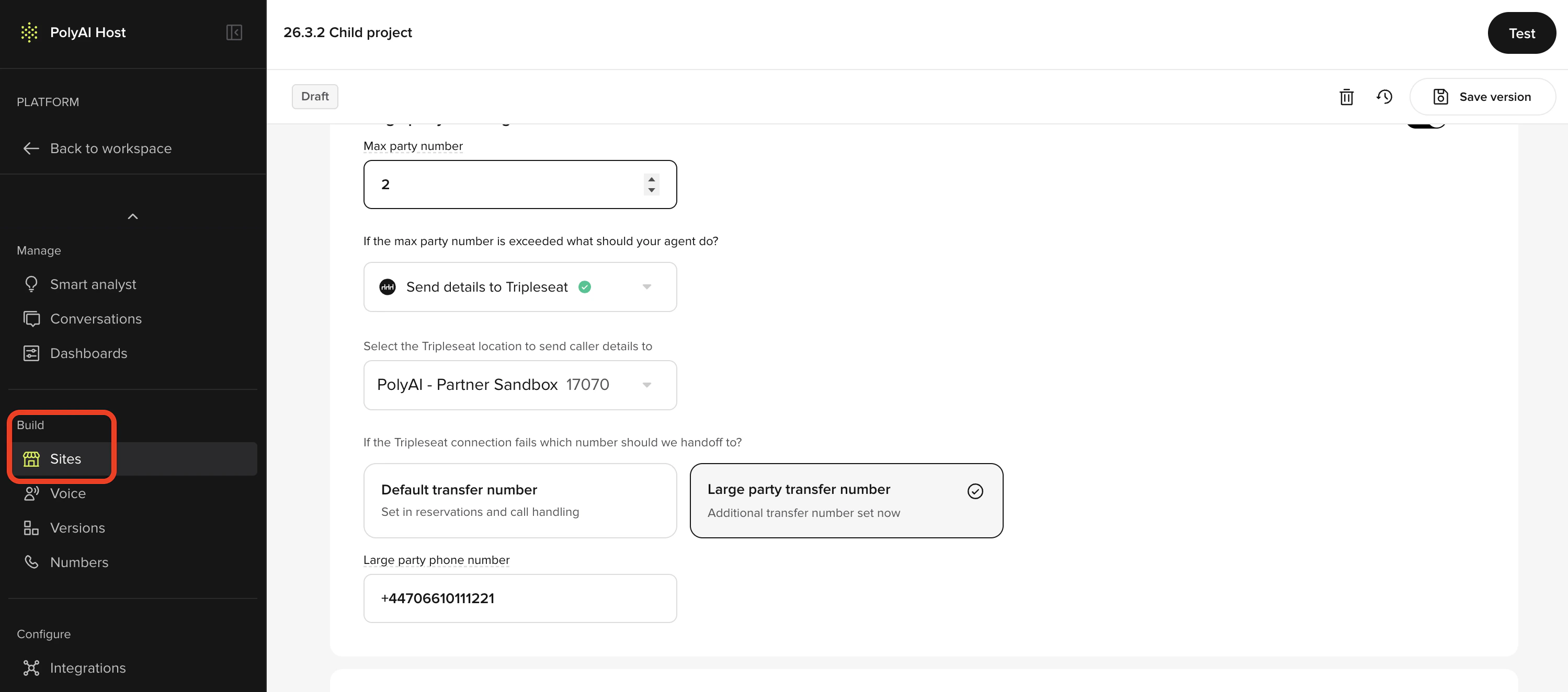
1
Open the site
- In the PolyAI platform, click Sites on the left panel
- Click the site you want to configure
2
Open Large party handling
Scroll to the Large party handling card and set:
- Max party number — the party size that triggers large party handling
- If the max party number is exceeded what should your agent do? — select Send details to Tripleseat
3
Connect Tripleseat (first time only)
If your account isn’t connected yet, click Connect Tripleseat and enter your Tripleseat credentials in the pop-up window.
4
Select the Tripleseat location
Under Select the Tripleseat location to send caller details to, choose the Tripleseat location that matches this site.
Tripleseat usually only runs at a subset of your sites. Only enable Send details to Tripleseat for the sites that use it.
5
Set the fallback transfer number
Under If the Tripleseat connection fails which number should we handoff to?, choose:
- Default transfer number — uses the transfer number set in reservations and call handling
- Large party transfer number — enter a dedicated number under Large party phone number (international format, for example
+44773223445)
6
Save the version
Click Save version in the top-right, add a note about your change, then go to Versions and click Go Live when you’re ready to publish.
Alternative large party action
Instead of Tripleseat, you can transfer large party callers to a phone number:Send details to Tripleseat
Send details to Tripleseat
The agent collects the event details and sends them to the Tripleseat location mapped to the site.
Handoff to restaurant
Handoff to restaurant
The agent transfers the guest to the Default transfer number or a Large party transfer number that you set on the site.