

Editing standard hours
Editing standard hours
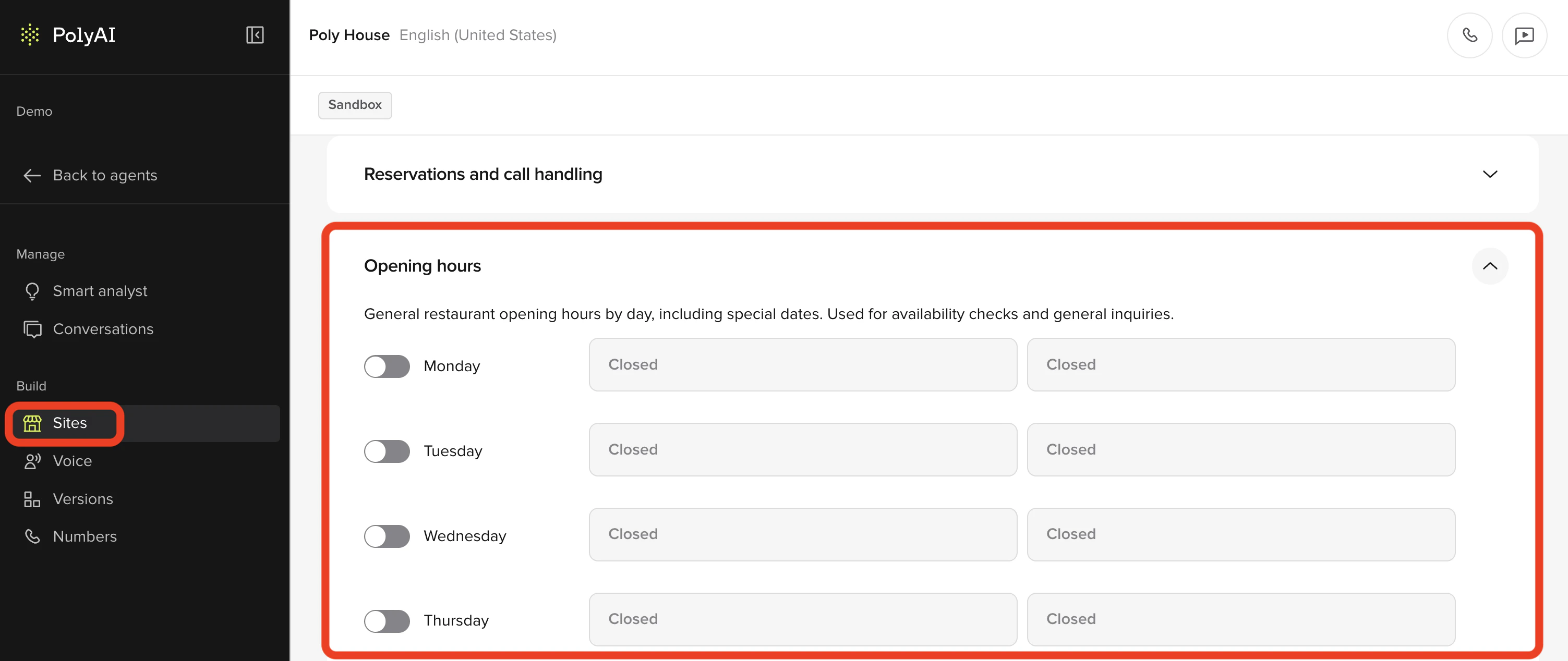
- In the PolyAI platform, click Sites on the left panel
- Click the site you want to make edits to
- Scroll down to the hours you want to make edits to:
- Opening hours (mandatory): General restaurant opening hours by day.
- Kitchen hours (optional): Kitchen service hours by day. If provided, customers asking about kitchen hours will hear these times.
- Bar hours (optional): Bar service hours by day. If provided, customers asking about bar hours will hear these times.
- Phone staff hours (optional): Hours when staff are available to handle transferred calls. Used to determine if call transfers are allowed during out-of-hours periods. If provided, transfers will be allowed during these hours even if outside opening hours (e.g., for prep time, cleanup, or special events). If empty, opening hours will be used for transfer availability checks.
- Toggle on the days when you are operating and use the dropdown menus to select the hours
- Click Save to version in the top-right
- Add a note about what you changed
- Then click Save to version again
- Click the call agent button in the top-right
- Select the site and click start test call
- Ask the agent about the hours that you edited (for example, “what are your opening hours for Monday?”
- If you are satisfied with how the agent responds, click Versions on the left panel
- Click Go live to the right of the change you made
Adding special dates
Adding special dates
A **special date **is a date when the restaurant’s opening hours are different from the typical opening hours for that day of the week.
- In the PolyAI platform, click Sites on the left panel
- Click the site you want to make edits to
- Scroll down to the hours you want to make edits to (opening hours, kitchen hours, bar hours, or staff hours)
- Click + special date
- Select the date (and check off override occurs each year if this is an annual special date)
- Use the dropdown menus to enter the operating hours OR click the three-dot icon to the far-right and set it as a “closed” date
- Click Save to version in the top-right
- Add a note about what you changed
- Then click Save to version again
- Click the call agent button in the top-right
- Select the site and click start test call
- Ask the agent about the hours that you edited (for example, “what time are you open on Christmas Day?”
- If you are satisfied with how the agent responds, click Versions on the left panel
- Click Go live to the right of the change you made.